> For the complete documentation index, see [llms.txt](https://support-en.braver.net/llms.txt). Markdown versions of documentation pages are available by appending `.md` to page URLs; this page is available as [Markdown](https://support-en.braver.net/for-healthcare-professionals/patient-files.md).
# Patient Files
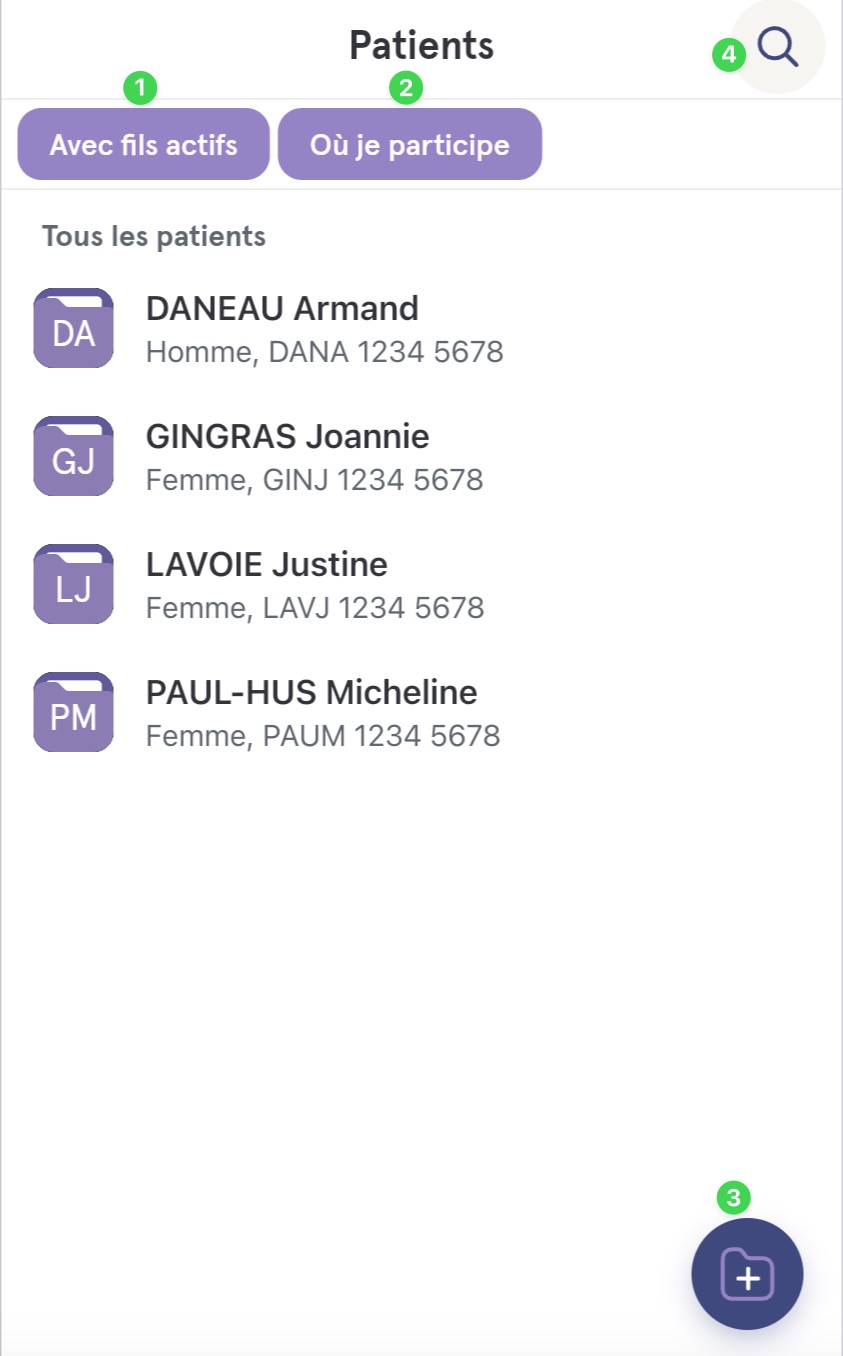
To view, create, or modify patient files, you can use the "Patients" tab.
1. The **With active threads** filter shows you the patients for whom there are currently ongoing threads that concern them. If you are part of a team and have the permissions to see the discussions that other team members have regarding patients in your organization, you will also see these patients here.
2. The **Where I participate** filter is only visible if you are part of a team and have the permissions to see the discussions that other team members have regarding patients in your organization. It serves to show only the patients for whom there are discussion threads or care channels where you have been personally involved.
3. The button to create a new patient file is located at the bottom right.
4. The search bar allows you to find patient files that you have created or that have been created in your organizational unit (if you are part of an organization).
**Feel free to consult** [**our dedicated guides**](https://support-en.braver.net/guides/for-professionals/patient-files) **to quickly understand how to use patient files.**
The patient files in a few lines
* Patient files allow identifying the patients about whom you collaborate. All clinical discussion threads about this patient will be recorded in this location.
* Each independent professional or organization can create patient files and collaborate with other stakeholders using these files as anchors.
* These files collect all exchanged information as well as the consents obtained from patients to carry out these exchanges within secure channels.
* To preserve confidentiality, the patient files held by professionals or organizations are not themselves shared during collaboration with other stakeholders. However, nominative information is indeed shared to simplify the process. Each person has their own file and thus their own perspective of the patient's information, to the extent of what they can access.
* The patient files of an organization can be aligned and/or synchronized with a centralized patient index to ensure continuity of information and proper referencing.
---
# Agent Instructions
This documentation is published with GitBook. GitBook is the documentation platform designed so that both humans and AI agents can read, navigate, and reason over technical content effectively. Learn more at gitbook.com.
## Querying This Documentation
If you need additional information that is not directly available in this page, you can query the documentation by asking a question.
Perform an HTTP GET request on the following URL with the `ask` and `goal` query parameters:
```
GET https://support-en.braver.net/for-healthcare-professionals/patient-files.md?ask=&goal=
```
`ask` is the immediate question: it should be specific, self-contained, and written in natural language.
`goal` is what the user is ultimately trying to achieve, the reason they need the answer. Sharing it helps GitBook give you a better, more relevant answer. A goal is most helpful when it describes the outcome the user wants rather than restating the question. For example, with `ask=how do I create an API token`, a goal like `automate deployments from our CI pipeline` lets GitBook tailor the answer to that use case.
The response will contain a direct answer to the question and relevant excerpts and sources from the documentation.
Use this mechanism when the answer is not explicitly present in the current page, you need clarification or additional context, or you want to retrieve related documentation sections.